
AI employees for your company
AI teammates that do real work
Each MatesBot teammate has its own computer, memory, and schedule. It signs in to your tools, finishes the job in the background, and checks in only when it needs you.
Sign up with your work email. Setup happens in one chat.
- Own computer
- Memory
- Routines
- Approvals
- Web, desktop & mobile
Setup
Set up your company in one conversation
The Owner Bot reads your website and, with your OK, your last 30 days of email at summary level. Then it creates departments, each with its own memory and a named AI lead, and asks a few multiple-choice questions about your products, customers, and goals.

In the app
See MatesBot on your phone
Scroll through real screens from the MatesBot iPhone app. Private details are blurred.
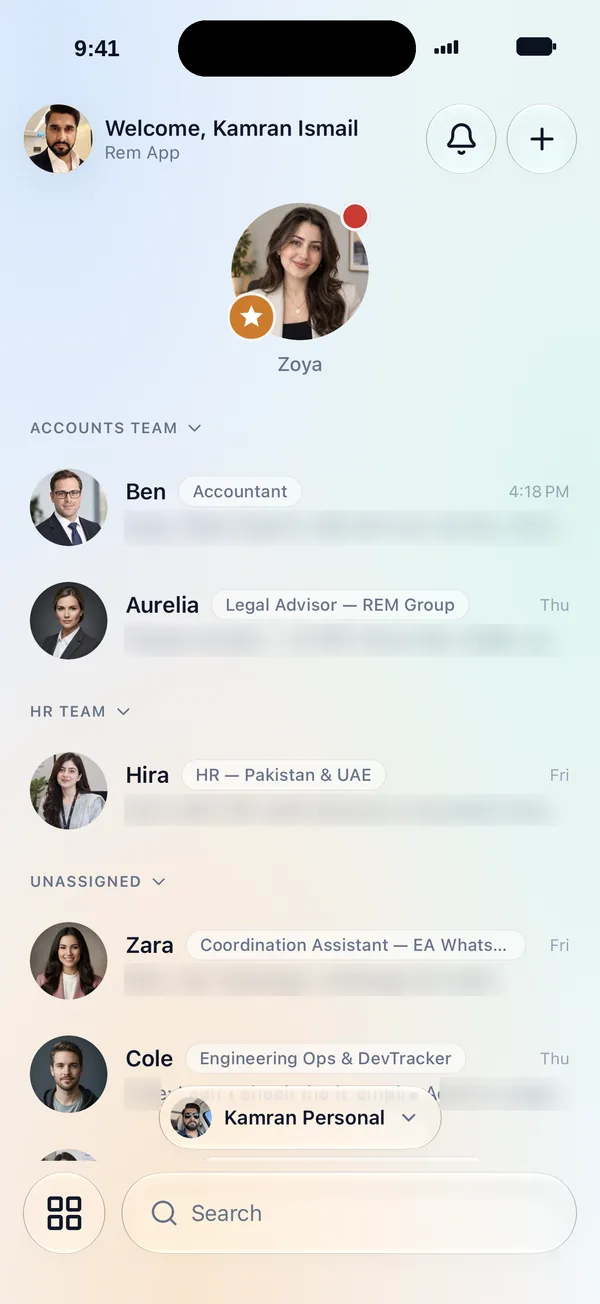
1Your team
Every teammate in one list
Open the app and your AI teammates are grouped by team, each with its role and its latest message. Tap one to pick up the conversation where it left off.
- Teams such as Accounts and HR, plus anyone not yet assigned
- A role label on every teammate, like Accountant or Legal Advisor
- Search to find any teammate fast
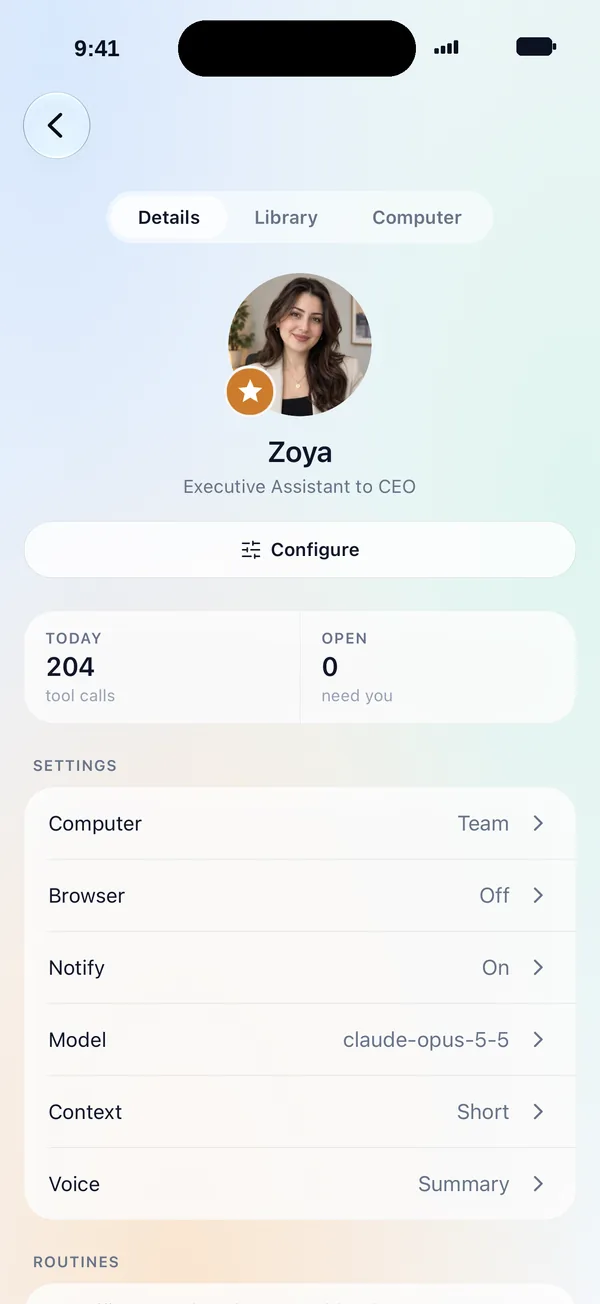
2Teammate settings
See what each teammate did today
Each teammate has its own page with today's tool calls and the number of items that need you. Its settings sit right below.
- Computer, browser, and notifications
- The AI model it uses, how much context it keeps, and how voice replies work
- Its routines, plus Library and Computer tabs
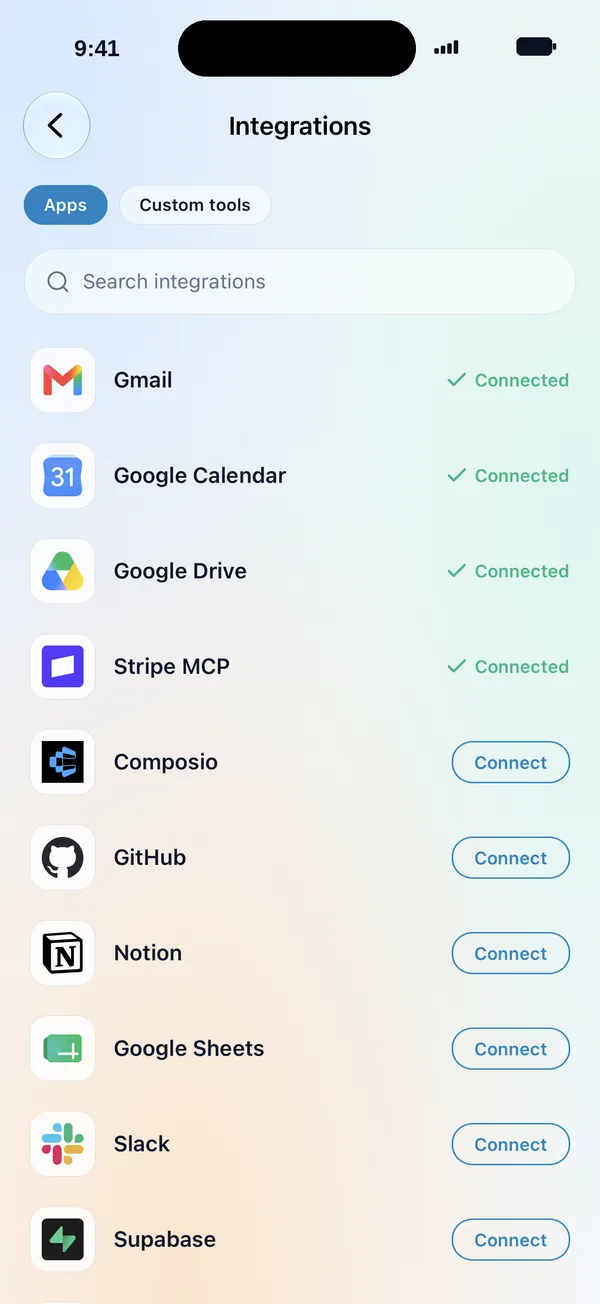
3Integrations
Connect the apps your work lives in
Connect apps from the catalog, such as Gmail, Google Calendar, Google Drive, Notion, Google Sheets, Slack, and GitHub. Add your own under Custom tools.
- A green check shows what is already connected
- Search the catalog to find an app
- Each teammate needs your permission to use a connection
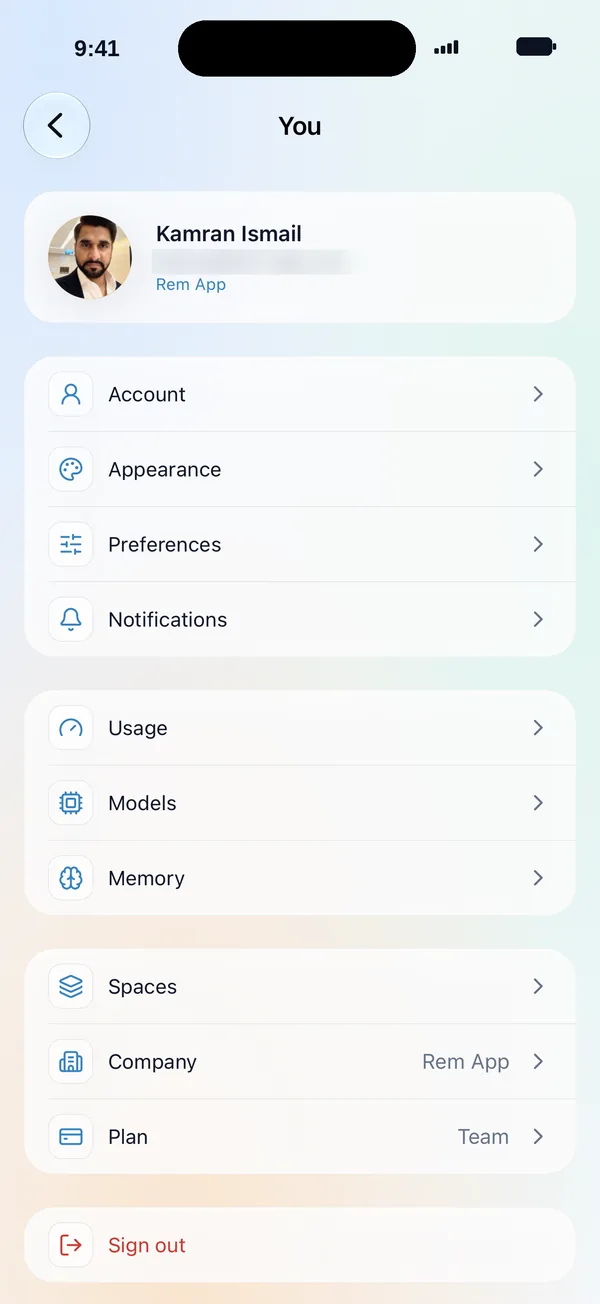
4You and your company
Your account, models, and plan in one place
Check usage, choose models, manage memory, and switch spaces or company settings from your phone.
- Usage, Models, and Memory
- Spaces, Company, and Plan
- Appearance, preferences, and notifications
Computer
Every teammate gets its own computer
A browser, a terminal, and files. Watch it work live, and take control anytime. When a site asks for a password or a two-factor code, the teammate hands you the screen.
Routines
Work keeps moving while you're away
Write routines in plain English, on a schedule or a trigger. A super bot wakes on its own, checks for stuck work, mail, and meetings, and speaks only when something needs you.
Every weekday at 7am
Triage the support inbox and draft replies for my review.
Every Monday at 9am
Build last week's sales sheet with a chart.
1st of each month
Send payment reminders for unpaid invoices.
Example routines. How routines work · The super bot

Departments
A teammate for every department
- SalesResearches accounts in the browser, drafts intros in your voice, and asks before sending.Learn more →

- MarketingMaintains your website and SEO, drafts posts, watches competitors, and makes campaign images.Learn more →

- Customer supportTriages a shared inbox, drafts replies, keeps your FAQ document current, and hands off to a person.Learn more →
- Finance and accountsReads invoices and receipts from PDFs and scans, builds expense sheets, and sends payment reminders.Learn more →

- Executive assistantGets your inbox to zero, preps your calendar, writes meeting notes, and briefs you each morning.Learn more →

- OperationsLogs in to supplier and government portals to enter or collect data, sends daily reports, and chases vendors.Learn more →

- Website and SEOBuilds and looks after your site through GitHub, with daily SEO and GEO work. It runs this site.Learn more →
Control
You stay in charge
Teammates act on their own, and ask before anything you mark as sensitive.
- Approval rules, such as "Ask before purchases" or "Ask before sending external email".
- An AI reviewer that flags unexpected actions and asks you when unsure.
- Passwords and keys encrypted, entered in a masked card, and never shown to the AI model.
- Separate spaces, owner, admin, and member roles, and weekly spend limits.

Models
Use the model that fits the job
Works with models from Anthropic (Claude), OpenAI (GPT), Google (Gemini), xAI (Grok), and more. Use plan credits with no setup, or bring your own keys.

Apps
Wherever you work
Reach your teammates on the web at my.matesbot.com, in the desktop app for Mac, Windows, and Linux, and on iPhone and Android.
Proof
This website is run by a MatesBot teammate
A MatesBot Website teammate built this site and looks after it every day. Its latest changes:
Moved the website to matesbot.com
The site now lives at https://matesbot.com. Canonical links, the sitemap, robots.txt and llms.txt point to the new address, and the old matesbot-website.vercel.app address redirects there.
Added a Teamwork feature page
A new page explains how MatesBot teammates work together: messages between teammates, group chats of 2 to 6 with @mentions and handoffs, and teammates that create helpers. It is listed in the sitemap and llms.txt.
Shortened page descriptions for search results
Trimmed the meta descriptions on 11 pages, including Home, Features, Departments, and Security, to under 160 characters so search engines show them in full instead of cutting them off.
Pricing
Plans with credits, or with your own AI keys
Start with a free trial. Then pick a credits plan, with no AI accounts to set up, or the Bring your own models plan. Pay by card, bank transfer, or cash, with VAT tax invoices.
Frequently asked questions
Is MatesBot a chatbot?
No. Each MatesBot teammate has its own computer, memory, and routines, and it finishes tasks in your real tools. It works in the background and checks in only when it needs information, a decision, approval, or a password.
Do I need technical skills?
No. You sign up with a work email, and the Owner Bot sets up your company with you in chat: it reads your website, creates departments, and asks a few multiple-choice questions.
What can a teammate connect to?
Apps from the built-in app catalog, your own tools through remote MCP servers, OpenAPI specs, and GraphQL endpoints, and any website through its own browser.
How do I stop it doing something I don't want?
Add approval rules such as "Ask before purchases", turn on the AI reviewer that flags unexpected actions, and take control of its screen at any time.
How is my company's information kept separate?
Spaces keep chats, files, memory, computers, and connections separate. Passwords and keys are encrypted with AES-256-GCM, entered in a masked card, and never shown to the AI model.
Which AI models does it use?
Models from Anthropic (Claude), OpenAI (GPT), Google (Gemini), xAI (Grok), and many others. You can pick a different model for each teammate.
Can it log in to websites?
Yes, in its own browser. For passwords, two-factor codes, CAPTCHAs, payments, and passkeys, it asks you to take over the screen.
What happens when my trial ends?
Your company becomes read-only. You can still sign in and read, teammates pause, and nothing is deleted. Choose a plan to continue. If you choose a plan during the trial, you keep the remaining trial days.
Give your first teammate real work today.
Sign up with your work email. The Owner Bot sets up your company with you in chat.